



Push notifications are still one of the most practical ways to keep users connected to a mobile app. When used thoughtfully, they deliver timely updates, bring people back at the right moment, and upkeep communication even when the app isn’t open. In this article, we’ll walk through how to implement remote push notifications in a React Native application using Firebase Cloud Messaging (FCM), including the native setup required for both iOS and Android.
The approach we describe isn’t theoretical. It’s based on a real production healthcare project — a psychological support app built for professionals who experienced trauma in the line of duty, including doctors, police officers, firefighters, and military personnel. In that environment, notifications weren’t just engagement tools. They were a reliable way to surface critical resources, offer peer support, and deliver urgent updates exactly when needed.
In the sections below, you’ll see how React Native push notifications work in practice, how to configure Firebase correctly, and how to handle notifications properly across both platforms in a production setting. We’ll also cover common mistakes, subtle differences between iOS and Android behavior, and the architectural decisions that make a real difference when you start scaling. The goal is simple: clear steps, realistic examples, and lessons learned from building and maintaining a live system.
What Are React Native Push Notifications?
Simply put, a push notification is a message sent from a remote server straight to a user’s device, whether the app is open, in the background, or completely closed. In a React Native app, notifications bridge your backend with the native services offered by Apple (APNs) and Google (FCM), with React Native serving as the layer that lets your JavaScript code communicate smoothly with these platform-specific systems.
There are two types:
- Local notifications – triggered directly by the app
- Remote (push) notifications – sent via cloud messaging services
Most production apps rely on remote notifications because they enable server-driven communication.
Typical use cases include:
- Content updates
- Reminders
- Alerts
- Transaction confirmations
- Re-engagement campaigns
In React Native projects, implementing push notifications requires understanding both iOS and Android behaviors, platform-specific permissions, and backend integration. Even though React Native is cross-platform, notification handling differs significantly between operating systems.
When teams create React Native app push notifications, they aim to balance relevance and frequency. Too many notifications lead users to disable them entirely.
Unlike local notifications, push notifications require:
- A device registration token
- A backend or messaging service
- Platform-specific permissions
In modern apps, React Native notifications play a central role in onboarding, retention, transactional updates, and real-time alerts. They are not just an add-on feature. They are part of the core communication flow.
Statistics show that apps using push notifications achieve 3–5x higher retention rates after 90 days. That difference is significant. Real-time communication keeps users connected. Time-sensitive information, such as security alerts or order updates, reaches them instantly and helps maintain engagement.
According to Gitnux, the average global open rate for push notifications is roughly 41%. In comparison, email open rates are much lower, with a typical average near 21.5% across industries and click-through rates closer to 2–3%. Push notifications therefore tend to outperform email in visibility and engagement.
How React Native Push Notifications Work
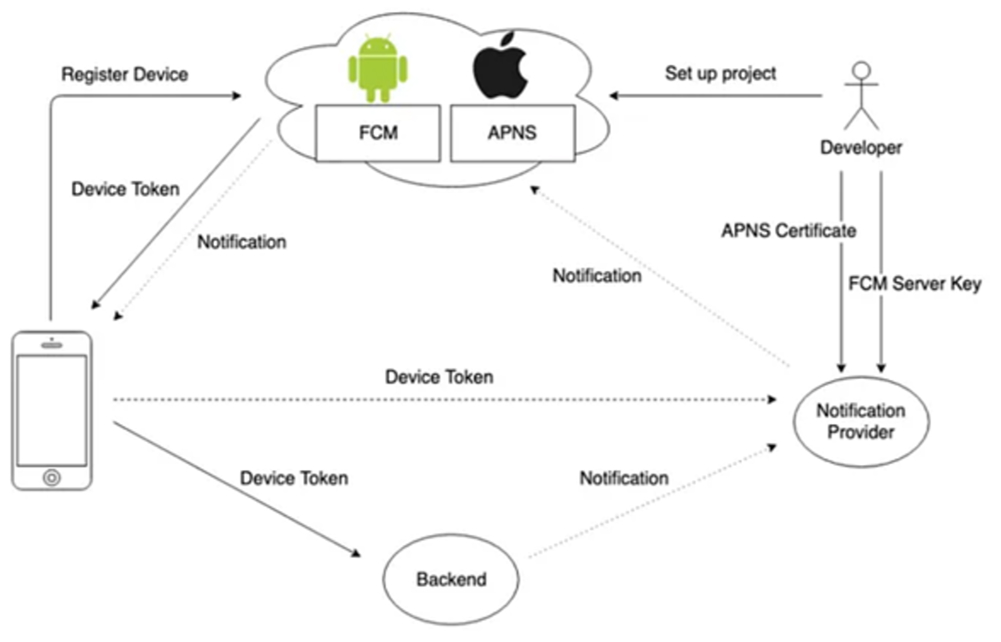
To understand React Native push notifications implementation, it helps to break the flow into six core stages:
 Project Setup We create a project in Firebase (for FCM), register the app, and configure the necessary dependencies within the application.
- Device Registration When the user launches the app for the first time, the app registers the device and assigns it a device token. This device token is a unique identifier used to receive push notifications. Each phone has its own token, which only changes if the app is deleted and reinstalled.
- Token Storage The device token is sent either:
- To the Notification Provider, or
- Directly to your backend — DevCom uses this approach.
- Sending Notifications When a notification needs to be sent (e.g., a new message or update), the backend or Notification Provider uses the device token. They send the notification along with the device token to FCM or APNS.
- Notification Delivery FCM or APNS delivers the push notification directly to the user’s device.
- Component Roles
- FCM (Firebase Cloud Messaging) — gateway for Android devices.
- APNS (Apple Push Notification Service) — gateway for iOS devices.
- Notification Provider — an intermediary or custom server with access to server keys, responsible for sending notifications.
- Device Token — a key parameter that identifies the device in the notification system.
This workflow applies to both React Native push notifications Android and React Native push notifications iOS, with platform-specific nuances, and serves as a practical react native push notifications tutorial that helps teams understand the complete delivery lifecycle before moving into implementation.
Which Push Notification Setup Should You Use?
Choosing the right provider is essential for a stable react native push notifications firebase configuration. While several services exist, Firebase Cloud Messaging (FCM) remains the industry standard due to its cross-platform nature and reliability.
The best setup depends on your app complexity, timeline, and infrastructure.
| Feature | FCM | APNS (Apple) | OneSignal | PubNub |
|---|---|---|---|---|
| Cross-Platform | Yes | iOS Only | Yes | Yes |
| Free Tier | Yes | Yes | Limited | Paid |
| Ease of Setup | Easy | Complex | Easy | Moderate |
| Reliability | High | High | Medium | High |
| Analytics | Built-in | No | Yes | Yes |
We recommend Firebase Cloud Messaging (FCM) because it is a free-to-start, cost-efficient solution with high limits and minimal latency (<500ms) backed by Google’s infrastructure.
Other options have notable limitations APNs works only with iOS and requires complex certification. PubNub, while reliable, does not offer a free tier. OneSignal is easier to integrate, but its free plan limits you to 10,000 subscribers.
Step-by-Step: Add Push Notifications in React Native
Implementation begins with the fundamental configuration of your cloud infrastructure, which acts as the intermediary between your server and the end-user devices. This section provides a practical react native push notifications setup walkthrough, covering Firebase configuration, native platform integration, and runtime handling.
Step 1. Firebase Project Configuration
- When initiating a project in the Firebase Console, selecting the correct region is critical. This choice directly influences delivery speed by minimizing latency between the server and the device.
- GDPR & Security: If your application operates within the EU, you must comply with GDPR requirements. This entails obtaining explicit user consent for data collection and push notification delivery prior to service initialization.
Step 2. Platform-Specific Integration
Separate identifiers must be generated for each platform: a Bundle ID for iOS and a Package Name for Android.
- Multi-Environment Configuration: For professional-grade projects like Sentinel, it is essential to create distinct Firebase applications for each development stage: -dev, -staging, and -prod. This ensures that testing remains isolated from the production environment.
- Configuration Files: The downloaded google-services.json and GoogleService-Info.plist files contain sensitive access keys. These must never be published in public repositories.
Step 3. Handling Notifications in Code
FCM iOS Integration
The iOS integration process requires precise configuration within both the Apple Developer Portal and Xcode.
- Certification: You must enable Push Notifications for your App ID in the Identifiers section and generate an APNs Token Key in the Keys section.
- Xcode Capabilities: Within the Signing & Capabilities tab, you must enable Push Notifications and Background Modes (specifically Remote notifications). Failure to do so will prevent notifications from reaching the device when the app is minimized.
- AppDelegate: Implementation requires adding methods for device registration and handling incoming data (callbacks) to allow the system to generate a unique token and pass it to FCM.
- Permissions: Utilize messaging().requestPermission() to retrieve the authorization status. The Provisional option allows notifications to appear in the notification center without an immediate disruptive prompt, significantly improving initial UX.
FCM Android Integration
Android setup focuses heavily on the manifest file and visual identity.
- Gradle & Plugins: Add google-services to your project dependencies and apply the corresponding plugin in your build.gradle files.
- Icons & Colors: For correct display on Android 13 and newer, you must provide a specialized black-and-white icon (ic_notification). Using a standard colored logo may result in a “white square” bug in the system tray during notification expansion due to system rendering constraints.
- Notification Channels (Android 8+): Developers must create channels to classify notifications by importance levels, such as IMPORTANCE_HIGH or DEFAULT. This empowers users to selectively disable certain types, like marketing pushes, while keeping critical alerts active.
Step 4. Receive Push Notifications (Component Logic)
Notification handling is managed through a functional component that aligns with the application’s lifecycle.
- Initialization: The app verifies permissions and token status. If the token is missing or expired (e.g., following an OS update), messaging().onTokenRefresh() is triggered to update the record on the server.
- Listeners: An unsubscribe listener is used to capture messages in both the foreground (active session) and background. The react-native-push-notification library enables the immediate display of a local notification if data arrives while the user is in the app.
When the app is active (foreground), FCM does not automatically display a system notification. Instead, you must manually trigger a local notification to ensure the user sees the alert.
Below is a practical example demonstrating how to display a local notification when a message arrives in the foreground:
Handling Foreground Notifications
import { useEffect } from ‘react’;
import messaging from ‘@react-native-firebase/messaging’;
import PushNotification from ‘react-native-push-notification’;
function NotificationHandler() {
useEffect(() => {
const unsubscribe = messaging().onMessage(async (remoteMessage) => {
if (remoteMessage.notification) {
const { title, body } = remoteMessage.notification;
PushNotification.localNotification({
channelId: ‘default-channel-id’,
title: title || ‘Notification’,
message: body || ”,
playSound: true,
soundName: ‘default’,
});
}
});
return unsubscribe;
}, []);
return null;
}
- Badge Clearing: When the application state changes to active, the logic should automatically reset the Badge Counter on iOS to maintain an accurate UI.
Step 5. Sending Notifications from Server to Devices
At this stage, we address a common question in production: how to send push notifications to React Native app users reliably and at scale. A solid notification system depends on close coordination between the client app and the backend.
- Device Token Synchronization: Every device generates a unique token. This token must be sent to the backend or CMS. Without it, the server cannot know which device should receive a notification.
- Handling “Read” Status: When a user opens a notification, the app should notify the backend. This marks the message as “read” and keeps badge counts accurate, even when the app is closed. It reflects messages that were sent but not yet acknowledged.
- Custom Data (Payload): The backend can include extra parameters, such as a type or ID, in the payload. This helps the app understand the context and navigate users automatically. For example, it can open a specific article, chat, or emergency screen when the notification is tapped.
For smooth deep linking, always include relevant contextual data in the payload. Set up a handler to redirect users to the correct screen when they interact with a notification.
Example:
Notification with Navigation
import { useEffect } from ‘react’;
import { useNavigation } from ‘@react-navigation/native’;
import PushNotification from ‘react-native-push-notification’;
function NotificationNavigationHandler() {
const navigation = useNavigation<any>();
useEffect(() => {
PushNotification.configure({
onNotification: (notification) => {
if (notification.userInteraction) {
const data = notification.data as { type?: string; id?: string };
if (!data?.type) {
navigation.navigate(‘Home’);
return;
}
switch (data.type) {
case ‘chat’:
navigation.navigate(‘Chat’, { chatId: data.id });
break;
case ‘article’:
navigation.navigate(‘Article’, { articleId: data.id });
break;
default:
navigation.navigate(‘Home’);
}
}
},
requestPermissions: false,
});
}, [navigation]);
return null;
}
Architecture
Using Push Notifications with Expo
React Native Expo push notifications provide an easy and quick way for developers to add push messaging using the expo-notifications library. The library takes care of much of the setup, including device token registration, scheduling, and basic delivery for both Android and iOS. For small teams or projects that need fast implementation, Expo allows notifications without touching native code.
However, for apps that require higher security or advanced features — like enterprise projects or apps similar to Sentinel — a “bare” React Native setup with React Native Push Notifications and Firebase (FCM) is usually better. This method gives developers full control over native modules, background processes, and advanced notification behavior. Going “bare” allows teams to customize notification flows, integrate detailed analytics, and manage complex user interactions more reliably than Expo’s managed workflow.
Advantages of Expo Push Notifications:
- No manual native configuration required
- Unified API for Android and iOS
- Rapid onboarding for small development teams
Limitations:
- Reduced control over native behaviors, such as background processing or silent notifications
- Dependency on Expo services for delivery
- Less suitable for highly customized notification flows
Choosing between Expo and a bare React Native + FCM setup depends on app complexity, security requirements, and the need for platform-specific optimizations.
Push Notification Use Cases
React Native push notifications are a powerful tool to improve engagement, retention, and real-time communication. Different notification types can serve specific business goals:
- Transactional alerts: Payment confirmations, order updates, booking reminders, and account activity notifications. In healthcare apps, this can include reminders for taking medications, upcoming doctor appointments, or notifications when lab results are ready.
- Promotional campaigns: Flash sales, discounts, new product announcements, or personalized offers based on user behavior. In wellness apps, notifications can encourage users to resume a subscription, participate in new programs, or check out newly published content.
- User engagement: App activity updates, new features announcements, social interactions, or content recommendations. Healthcare and fitness apps can use this to prompt users to log their daily health journal, track steps, or answer “How’s your mood today?” surveys.
- Critical alerts: Security warnings, system downtime notifications, or urgent reminders that require immediate user attention, without reference to any specific domain.
Selecting the right notification type, coupled with precise audience targeting, significantly boosts user engagement, retention rates, and app ROI. Advanced analytics tools within FCM or Expo allow teams to measure open rates, conversions, and behavioral responses to each notification, which is especially valuable in time-sensitive domains like healthcare.
Sending Notifications at Scale
Scaling push notifications for React Native apps is not simply a matter of sending messages. It requires a robust backend architecture capable of orchestrating delivery across potentially millions of devices.
Key considerations include:
- Token lifecycle management: Store unique device tokens on the server and update them via onTokenRefresh() when a user reinstalls or resets the app.
- Payload routing: Include custom fields like “type” in the JSON payload to navigate users to specific screens, such as a chat room or emergency resources, upon tapping the notification.
- Retry logic and error handling: Automatically retry failed deliveries while avoiding duplicate messages.
- Rate limits: Respect throttling limits set by FCM and APNs to prevent dropped messages.
- Message deduplication: Ensure repeated notifications do not overwhelm users.
At scale, teams often introduce:
- Message queues to orchestrate notification workflows
- Batch processing to efficiently send large volumes of notifications
- Observability and analytics to track delivery success, engagement, and failures
Effectively, backend architecture becomes as critical as mobile implementation, ensuring notifications reach users reliably and promptly.
Push Notification Common Issues
Even experienced developers face challenges when implementing React Native push notifications:
- Older Android versions may not support modern push notification methods, so fallback solutions may be needed.
- Incorrect app identifiers in Firebase or configuration files for Android and iOS can prevent notification delivery.
- Badge counters not updating when the app is closed, often due to platform limitations or missing background handling.
- Token issues: Expired or invalid FCM/APNs tokens can block notifications from reaching users.
- Platform differences: iOS usually behaves consistently across devices, but Android behavior varies widely depending on OS version and manufacturer customizations, which can affect how notifications are displayed and processed.
- Android notification channels: Newer Android versions require properly configured notification channels, while older versions handle notifications differently. Developers must account for these differences to ensure consistent behavior.
- User permissions: Push notifications require explicit consent from users. If denied, notifications will not appear.
- Delayed delivery: Network issues or backend misconfigurations can cause notifications to arrive late or fail entirely.
Mitigating these issues requires careful testing across multiple devices and OS versions, monitoring delivery, and using a reliable service like Firebase Cloud Messaging. A structured setup approach helps reduce risks and ensures consistent behavior for all users.
Best Practices for Push Notifications in React Native
Adopting best practices ensures your notifications are effective, engaging, and trusted by users. Recommended strategies include:
- Ask permission after demonstrating value: Show users the benefit of notifications before prompting for consent.
- Segment users instead of blasting everyone: Personalization improves engagement and reduces opt-outs.
- Use silent notifications for background sync: Reduce intrusive alerts by updating app content in the background.
- Test on real devices, not only simulators: Simulators often miss platform-specific behaviors.
- Monitor opt-out and engagement metrics: Continuously optimize notification strategy based on user interaction data.
Implementing these React Native push notifications best practices balances user engagement with trust, maximizing the long-term success of your app’s communication strategy.
FAQs
You can implement push notifications using Firebase Cloud Messaging (FCM) or Expo Notifications. The process involves registering your app, configuring device tokens, and handling notifications in your React Native code with libraries like react-native-push-notification or expo-notifications. Your app should manage displaying alerts and optionally navigate users to specific screens when they tap a notification. This ensures a smooth and engaging user experience across both Android and iOS devices.
For production apps with high reliability, we recommend FCM because it provides low-latency delivery, cross-platform support, and advanced features such as topics, scheduling, and analytics. Expo Notifications is suitable for smaller apps, prototypes, or rapid development, offering simpler integration with less native configuration. For apps that start in Expo but need future scalability, migrating to a bare React Native setup with FCM gives full control over notification channels, background processing, and advanced behaviors.
While you can send test notifications manually from the Firebase Console or Expo dashboard, real-world apps almost always require a backend for practical use. A backend allows you to automate notifications based on user actions, in-app events, or database triggers, ensuring messages are timely and relevant. A backend also enables advanced features such as user segmentation, scheduling, retry logic, and analytics. Without one, notifications are limited to manual sending or very basic workflows, which is not feasible for production apps with many users or dynamic content.
Firebase Cloud Messaging is the most popular choice for React Native apps because it supports both Android and iOS, offers a free tier, and scales efficiently. Other options include OneSignal, which provides an easy-to-use dashboard, or fully custom backends built with Node.js, Python, or other server technologies. For most production apps, FCM provides the most stable and maintainable solution.
To broadcast notifications to all users, use FCM topics, such as /topics/all. Devices subscribe to the topic, then you can send notifications via the FCM API or Firebase console. Including optional payload data allows your app to navigate users to specific screens or trigger in-app actions. This approach is scalable, efficient, and avoids sending individual messages to each device manually, ensuring fast and reliable delivery.
























.svg)